
On page 11 sections
Briefly
WorldPainter creates a landscape with brushes: you can draw an island, mountains, shore, and vegetation, then export the world Minecraft. For the first project, select a small map and simple terrain. The main test is performed in the game: a flat slope may prove to be an impassable wall when looking from the ground.
Minecraft: The goal of the lesson is Java Edition 1.21.1. Version: WorldPainter 2.27.0; The official installer for this version is available.
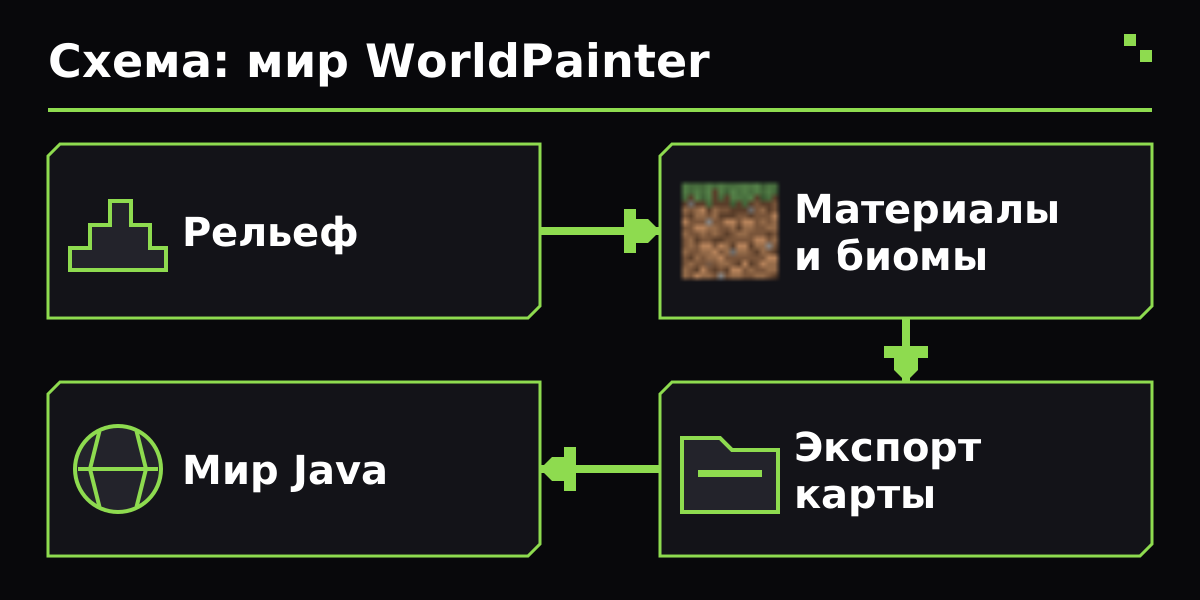
Scheme of the new WorldPainter world: terrain, materials and biomes, map export, checking the finished world in Java Edition.
- Install WorldPainter and Java of the appropriate architecture. Create a new world via File → New or Ctrl+N.
- For an island of study, take a small area such as 512×512 blocks and a format compatible with Java 1.21.1. Choose normal height limits, do not change them in the first draft.
- Set the water level and reference height so that you can understand where the land is and where the bottom is. Immediately save the project via Ctrl+S separate .world: Export will be needed later.
With the instrument Heath lift the central part above the water and lower the edge. The left button uses the selected tool, the right button reverses when it is provided. The wheel changes the size of the brush, Ctrl+wheel scalees the view, and the middle button moves the map.
First, put in a large form with a large soft brush with little intensity. Then lower your brush and add one ridge or hill. Smooth smooths the crossings. Leave low enough land around the centre: a continuous high ridge all over the shore makes landing and construction difficult.
- Apply surface materials: shore, soil and open stone. Check that the surface block is chosen, e.g. grass_block, rather than the short_grass plant.
- Set appropriate biomes. Biom affects the color of herbs, precipitation, and other conditions of Minecraft; a separate modification of biome does not create a finished forest automatically.
- Add a layer of vegetation on a limited plot and leave the future launch site free. After first export, rate the thickness of the game, then adjust it.
- Do not turn on Populate anywhere just for trees. This mode allows Minecraft to add its own features; for a pre-planned landscape, its influence needs to be checked separately.
Save .world and select File \Export as Minecraft Map or Ctrl+E. Please specify a separate conservation name and directory of saves for the game profile that you will open. Please check the target format before starting export.
Start the Minecraft Java 1.21.1 and find a map in single worlds. Check the starting point, water level, sharp slopes, voids off the coast and selected vegetation. Follow the route on foot, then inspect the island from above. Correct the .world project and export the next version separately, while keeping the previous successful map.
Use the Export for a new landscape. If you've imported the existing world and you want to change it back, you need Merge. Regular imports carry information on terrain, surface and biomes rather than a complete redacted sample of all underground and above-ground structures.
When imported, areas with artificial blocks are usually marked Red-only and do not merge back. Do not remove the security only because the changes did not appear: first check the backup copy and the area of correction. For your server, move a ready-made world folder under a stopped server, and check with its name.
| Problem | What to check |
|---|---|
| The program does not find Java | Check out the architecture of WorldPainter and Java. For Windows x64, use both 64-bit versions rather than Java from Program Files (x86). |
| There is .world, but Minecraft does not show the map | Export using Ctrl+E. The .world project is not a Minecraft save; The finished folder should go into the saves of the desired profile. |
| Holes or plants appeared instead of grassy soil | Check the material: grass_block - block of earth with grass, short_grass - plant. The surface cannot be replaced by the name of the plant. |
| After import, the edits did not appear in the old world | Use Merge and check Read-only in modified chunks. Do not replace an existing world with a new export without a separate copy. |
| There is a sharp transition beyond the edge of the island | Think of the boundary: lower the edges under water and check the settings of the region at export. The minecraft area is dependent on its generator and does not have to continue your topography. |
| Should the maximum height be changed? | No for the first world. Non-standard limits add format and compatibility requirements; first draw a normal map for the selected version. |
Minecraft: The purpose of the lesson is Java Edition 1.21.1. The version: WorldPainter 2.27.0; the official installer of this version is available. Installation: A separate program, not a mod. Java 17 or a newer architecture; Windows x64 requires a 64-bit version. Java 1.21.1 selects a compatible map format of 1.20.5 or a new one; check the proposed export options. This is not a programme for direct exports to Bedrock. The file .world is a WorldPainter project rather than a ready preservation of Minecraft. Importing the existing world is not a complete copy of all buildings. Merge, not a normal export, is used to reverse the changes.
- WorldPainter: official website, installation and Java requirements
- WorldPainter: official CHANGELOG, release 2.27.0 dated 06/27/2026
- WorldPainter: Controls
- WorldPainter: Keyboard Shortcuts
- WorldPainter: FAQ, Export, Import and Merge
- WorldPainter: Populate Layer
- WorldPainter API: list of supported map formats
Certificate verified 31 October 2026 year. Before installation, select the file for your version of the game and loader.
Is it possible to draw a map for the server?
Yes. The Java server uses the same world saving. Export, check in game, then transfer the folder to the stopped server.
Do players need WorldPainter?
No. After export, it is a normal Java world. Additional mods are only needed if the map itself uses mod blocks or mechanics.
Can an import be considered a backup?
No. Import is designed to work with landscape. A backup copy is a separate complete copy of the original world directory.
- How to use Litematica
- How to use Axiom
- Own item in Blockbench
- Biome mods
- JuxMC Launcher
- How to create a server
Whole section Find a Minecraft server
Verified according to the official documentation of the authors. Compatibility is shown as an example on the page.