
On page 7 sections
Briefly
Three layouts for Zalith Launcher 2: survival, construction and PvP.
The layouts are based on the album screen and standard keys of Minecraft Java. The centre has a place to see with its finger. W+A and W+D allow one finger to move diagonally; hotbar objects are selected by the usual touch of game slots.
Survival
Basic layout: movement, jump, attack and use of an item.

Left thumb - movement; right - review and actions. Ctrl is toggled by a separate touch.
download JSON · 13947 byteOpen a bigger scheme.
Button assignments
| C Button | Action |
|---|---|
| Esc | Menu / close screen |
| T | Open chat |
| IME | Show or hide Android keyboard |
| E | Open or close inventory |
| W | Forward |
| W+A | Forward and left at the same time |
| W+D | Forward and right at the same time |
| A | Left |
| S | Backwards |
| D | Right |
| Ctrl | Enable / disable Ctrl: run while moving forward |
| LMB | Attack / destroy block / left click in menu |
| RMB | Use item / place block / right click |
| Shift | Crouch while button is held |
| Space | Jump |
Construction
Selecting a block and changing hands has been added to the basic actions.

Left thumb - movement; right - review, installation and selection of the block. F changes hands.
download JSON · 15668 byteOpen a bigger scheme.
Button assignments
| C Button | Action |
|---|---|
| Esc | Menu / close screen |
| T | Open chat |
| IME | Show or hide Android keyboard |
| E | Open or close inventory |
| W | Forward |
| W+A | Forward and left at the same time |
| W+D | Forward and right at the same time |
| A | Left |
| S | Backwards |
| D | Right |
| Ctrl | Enable / disable Ctrl: run while moving forward |
| LMB | Attack / destroy block / left click in menu |
| RMB | Use item / place block / right click |
| Shift | Crouch while button is held |
| Space | Jump |
| F | Change the item in the main and second hand |
| SCM | Select the block you are looking at (middle mouse button) |
PvP · three fingers
The attack is moved to the top right; jumping and using an item remain below.
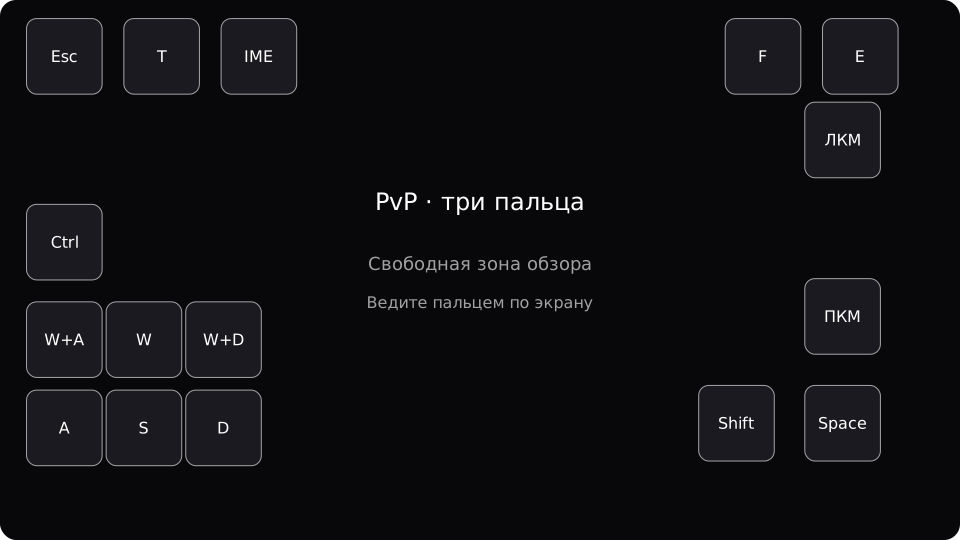
Left thumb - movement, right thumb - review, right index finger - top LMB button.
download JSON · 14826 byteOpen a bigger scheme.
Button assignments
| C Button | Action |
|---|---|
| Esc | Menu / close screen |
| T | Open chat |
| IME | Show or hide Android keyboard |
| E | Open or close inventory |
| W | Forward |
| W+A | Forward and left at the same time |
| W+D | Forward and right at the same time |
| A | Left |
| S | Backwards |
| D | Right |
| Ctrl | Enable / disable Ctrl: run while moving forward |
| LMB | Attack / destroy block / left click in menu |
| RMB | Use item / place block / right click |
| Shift | Crouch while button is held |
| Space | Jump |
| F | Change the item in the main and second hand |
- Download JSON of the selected layout. Do not unzip or place it in your mods or saves folder.
- In Zalith Launcher 2, open the control section and a list of layouts. Select the import from the file and indicate the downloaded JSON via the Android file dialog.
- Select the JuxMC setup that has been introduced. If a file is not accepted, check the Luncher version and make sure that JSON downloads instead of the HTML page saved.
- Open the single player test world. If necessary, change the size and position of the buttons in the layout editor, saving your copy.
If Java doesn't start yet, start with Java Edition on telephone. These files do not change the rendering and memory settings.
- Test the simultaneous movement and jump, then the movement and rotation of the camera. Buttons should not cover the area you are viewing.
- Check the attack and the use of the object separately. The retention of the button transmits the normal input retention; there are no automatic series of strikes here.
- Open inventory, move the item, close it via Esc. Check the chat and keyboard button.
- If you've changed the keys in Minecraft, check them with the layout: E - inventory, Space - jump, Shift - sitting, Ctrl - running, F - changing hands, T - chat.
- The screen size, clippings and scope of the interface are different. Set up buttons in the editor; especially check the top attack button in PvP.
The format of editor 12, Zalith Launcher 2.2.8.1. The structure, keyboard events and button boundaries are checked against the original code of this issue. Imports to real Android devices and convenience in the game require checking on your phone.
The layouts are created by JuxMC and are available under CC0: they can be modified and distributed. format in Zalith source code. CC0 Conditions.
What launcher are these layouts imported into?
The files are for Zalith Launcher 2 with editor format 12. The structure is consistent with the original output code 2.8.1. They are not Bedrock, FCL or old PojavLauncher settings.
Is it possible to change the size and placement of buttons?
Yes. Once imported, open a copy of the layout in the Zalith editor and set it up under the screen and your fingers. The original download JSON can be imported again.
Will Minecraft Settings Files Replace My Worlds?
No. JSON contains only the touch buttons of the Launcher. The Minecraft should retain the corresponding keys; the re-assigned actions need to be agreed manually.
The JuxMC buttons are both geometry and destination. The JSON format checks against the Zalith Launcher 2 source code; comfort depends on Minecraft's screen and settings.